Security Groups
A Security Group is a stateful software firewall that controls inbound (Ingress) and outbound (Egress) traffic for VMs. All VMs that are members of a Security Group apply its rules.
Tip
Create Security Groups with the necessary rules before deploying a VM, so you can simply select them in the Launch Instance Wizard.
Create a Security Group
Horizon
- Navigate to Network > Security Groups and click +Create Security Group.
- Enter a Name and optionally a description.
- Click +Create Security Group.
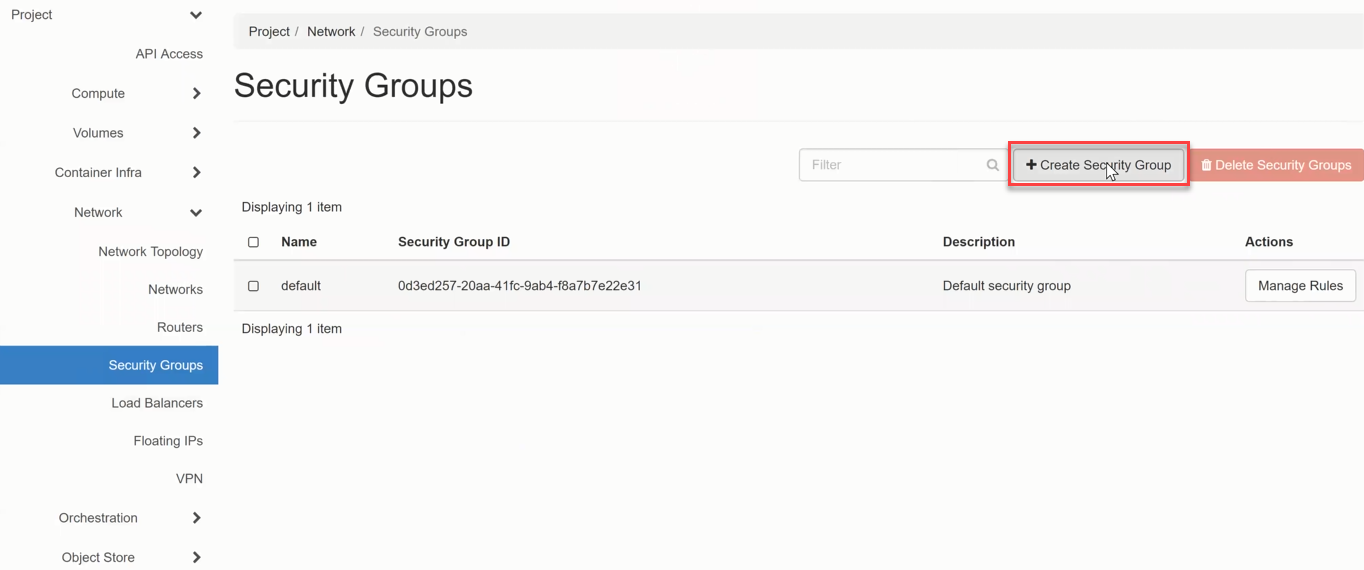
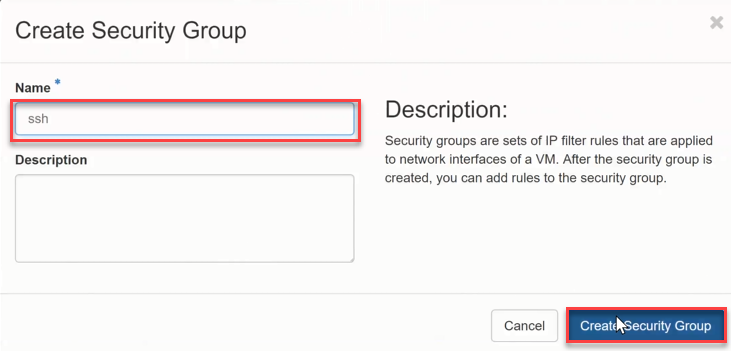
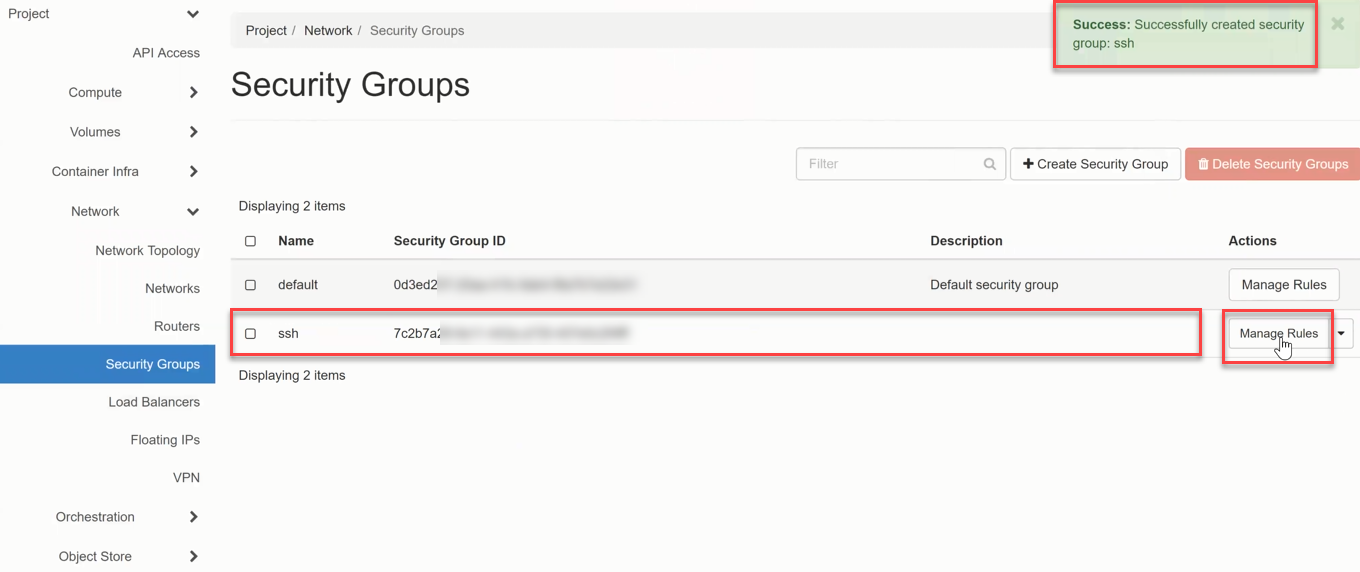
The Security Group is created and appears in the list. Click Manage Rules to configure rules.
CLI
openstack security group create my-secgroup \
    --description "SSH and web access"
Add Rules
By default, an Egress rule (any/any) is created automatically to allow outgoing connections. Add Ingress rules to allow incoming traffic.
Horizon
- Click +Add Rule.
- Select a template (e.g. SSH) or choose Custom TCP Rule.
- Configure the Remote (CIDR or another Security Group).
- Click Add.
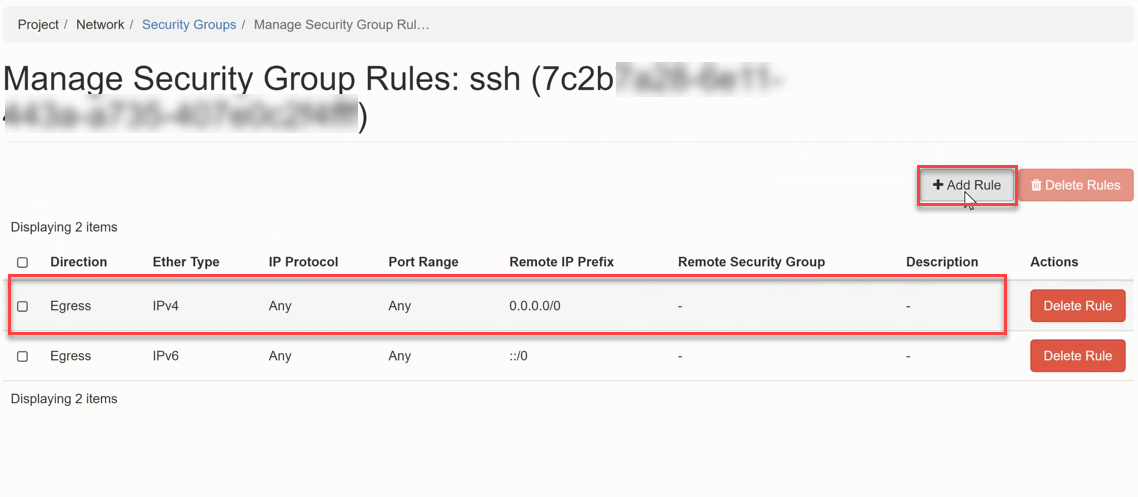
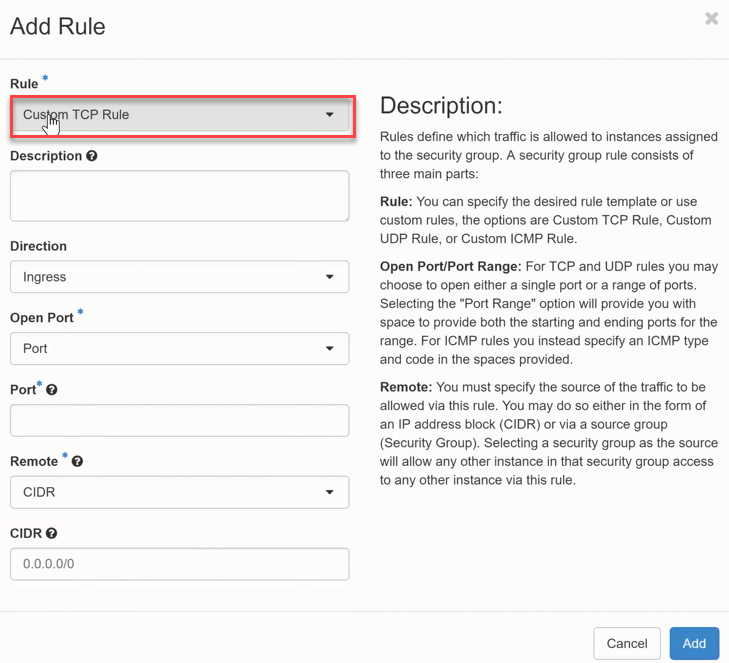
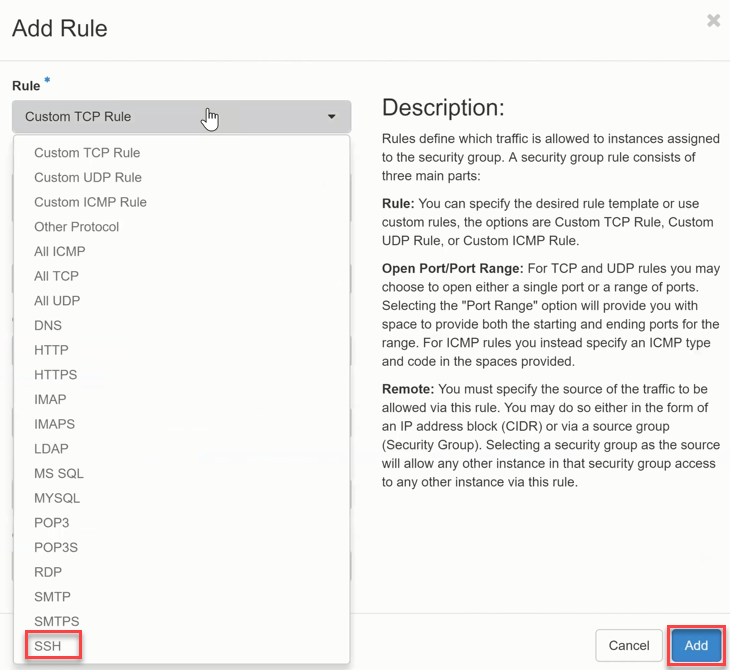
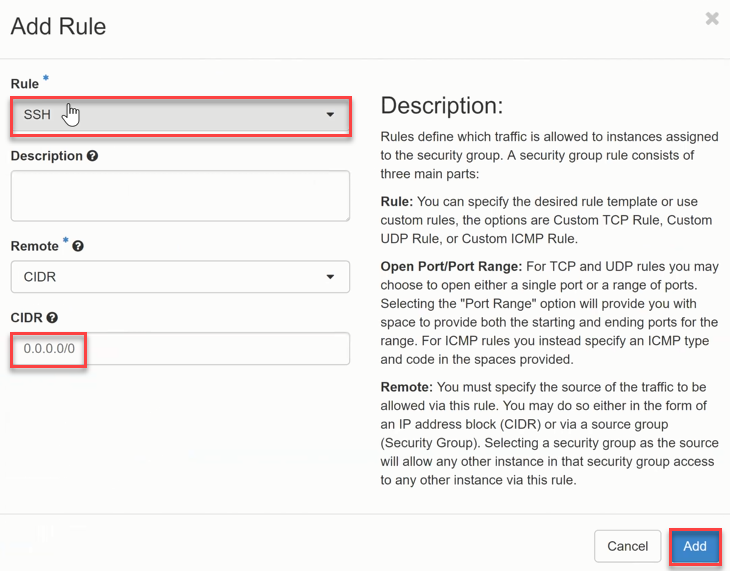
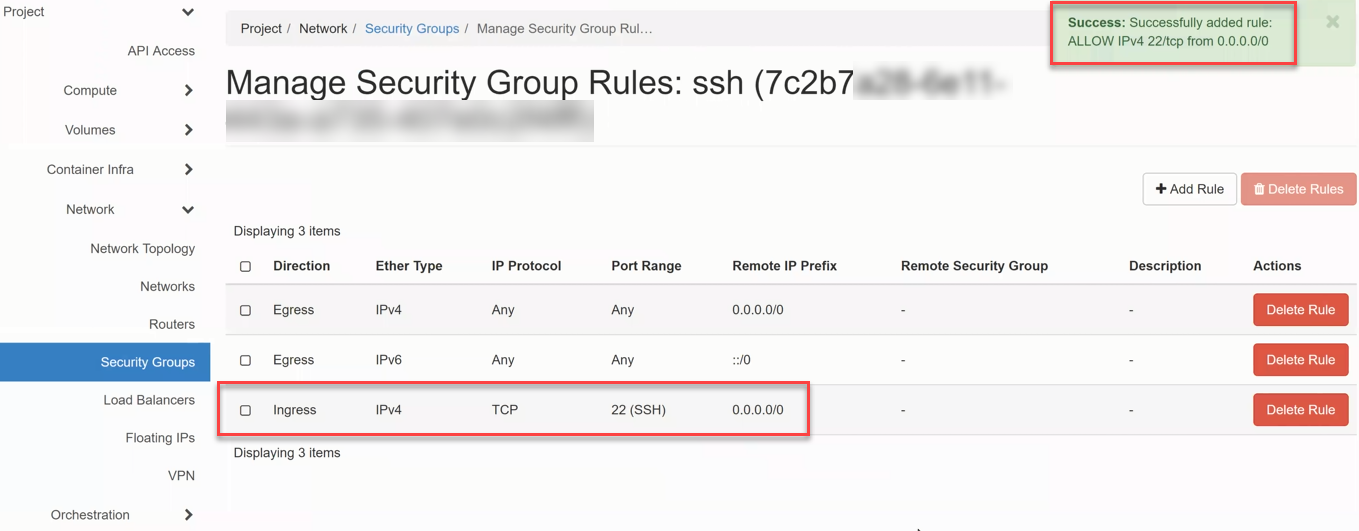
The SSH Ingress rule (TCP / Port 22) is now active.
CLI
# Allow SSH from anywhere
openstack security group rule create my-secgroup \
    --protocol tcp --dst-port 22 --remote-ip 0.0.0.0/0

# Allow HTTP from anywhere
openstack security group rule create my-secgroup \
    --protocol tcp --dst-port 80 --remote-ip 0.0.0.0/0

# Allow ICMP (ping)
openstack security group rule create my-secgroup \
    --protocol icmp --remote-ip 0.0.0.0/0
Assign a Security Group to a VM
Horizon
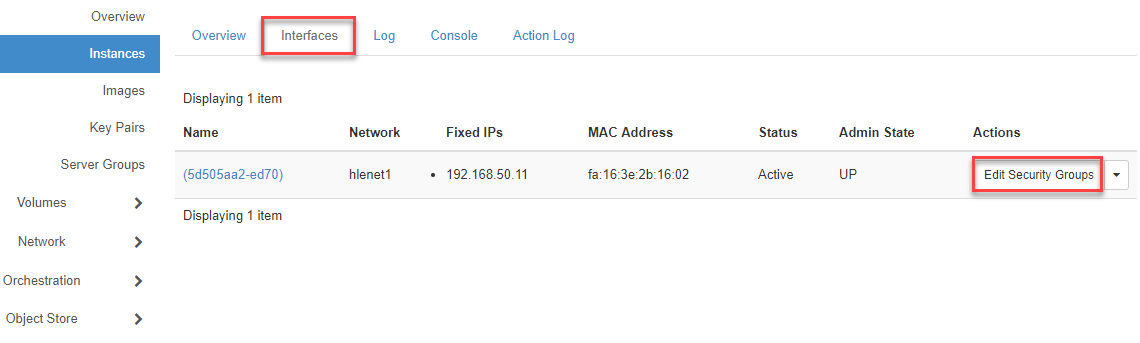
- Navigate to Compute > Instances.
- In the Interfaces tab, click Edit Security Groups.
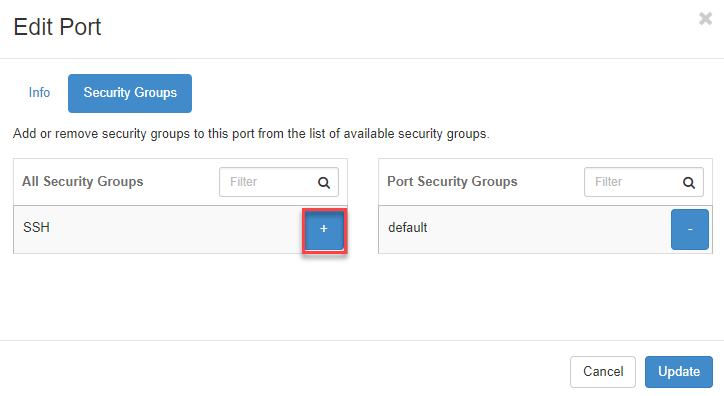
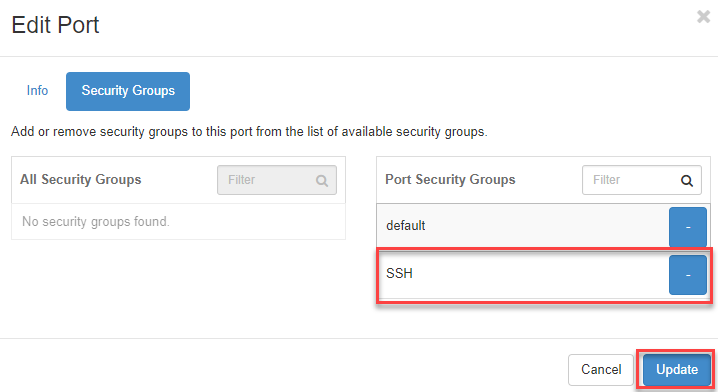
- Click the + to add the Security Group to the VM's port.
- Click Update.
CLI
openstack server add security group my-vm my-secgroup
Note
Security Groups can also be assigned during VM launch. See Launch Instance.