IPSEC VPN
This guide describes how to configure an IPSEC VPN site-to-site connection in OpenStack Horizon.
Prerequisites
- A router connected to a private network (see Setup Network).
- The VPN configuration must match on both sides (OpenStack and the remote peer).
For the IPSEC VPN connection to work, the configuration on both sides must match. The following steps describe the OpenStack side.
1. Create IKE Policy (Phase 1)
- Navigate to Network Topology.
- Click +Add IKE Policy in the top right.
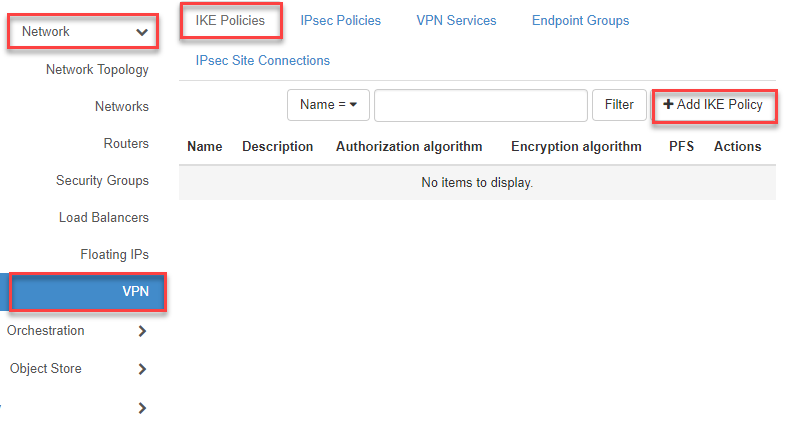
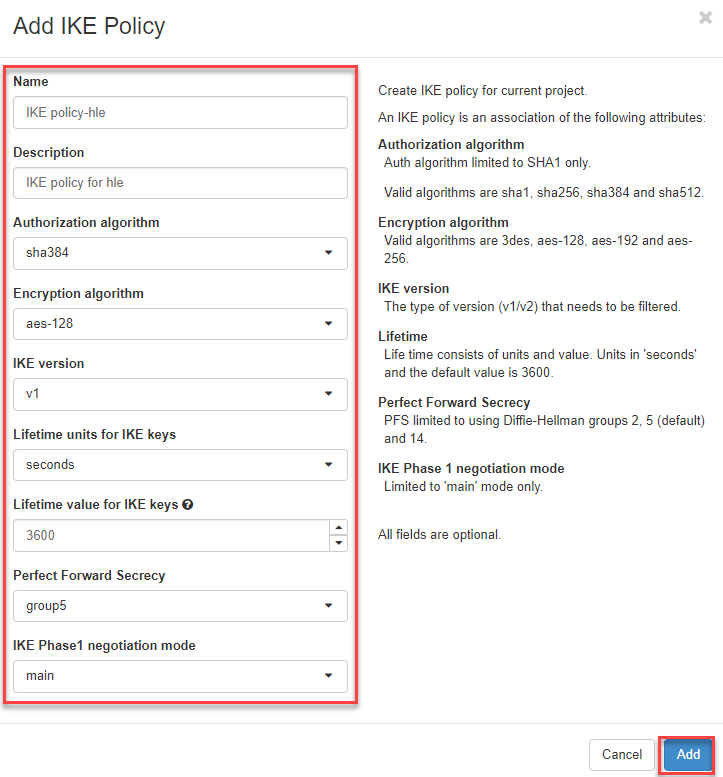
- Enter the required information and click Add.
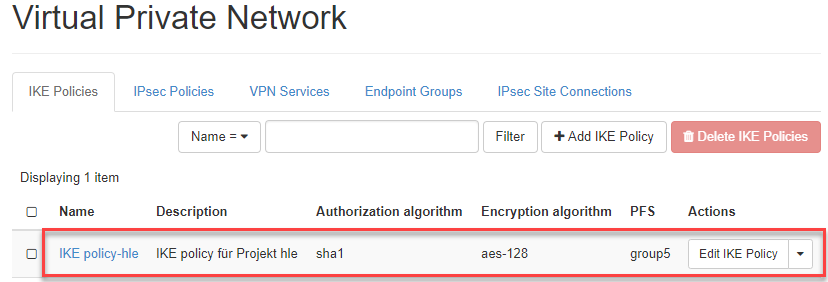
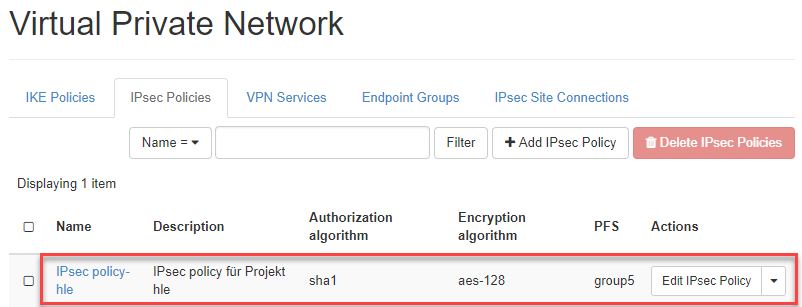
The IKE policy is created and listed.
2. Create IPsec Policy (Phase 2)
- Switch to the IPsec Policies tab.
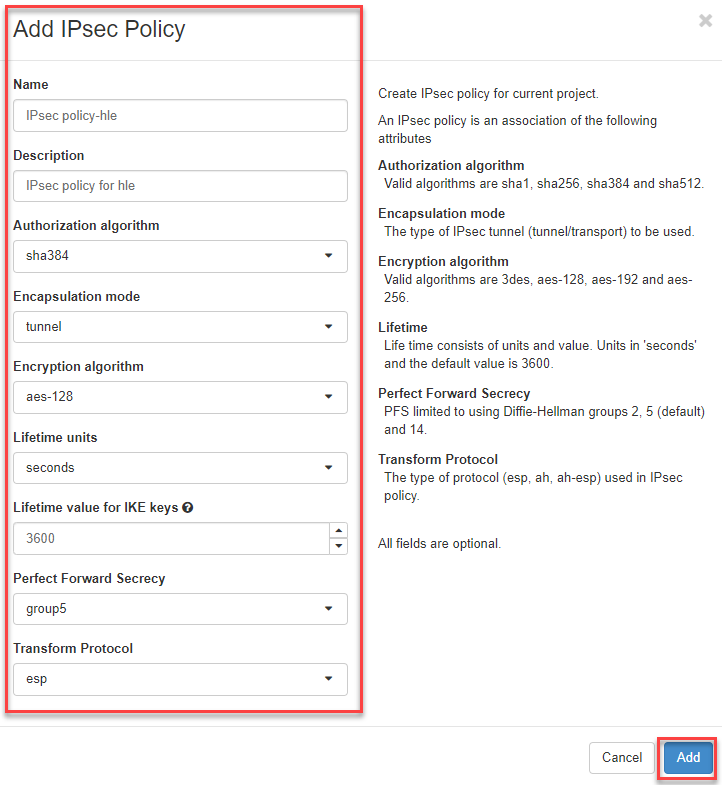
- Click +Add IPsec Policy.
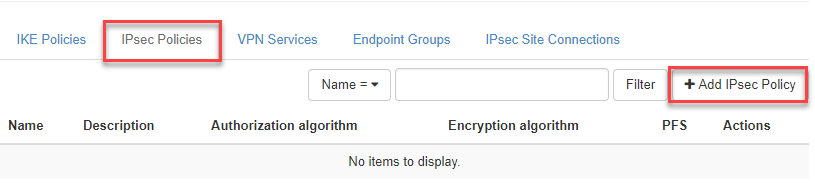
- Enter the information and click Add.
Important
Currently, only the Transform Protocols esp and ah are supported.
3. Add VPN Service
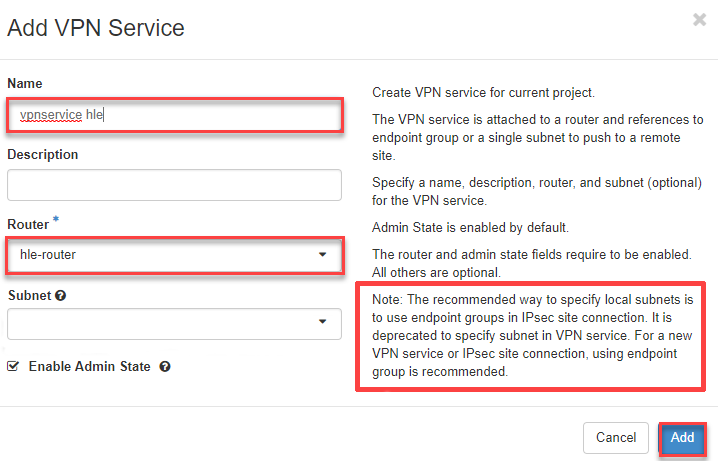
Here you specify the network information from the OpenStack side (Router and Subnet).
Warning
A maximum of one VPN Service per virtual Router is supported. However, multiple IPsec Site Connections are allowed per router, as long as they use the same VPN Service.
- Switch to the VPN Service tab.
- Click +Add VPN Service.
- Enter the information and click Add.
4. Add Endpoint Groups
Here you specify the network information for A) OpenStack (local subnet) and B) the VPN peer (remote CIDR).
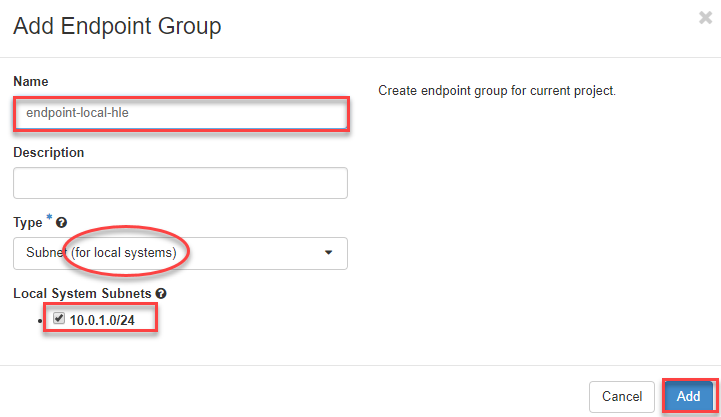
A) Local Endpoint Group
- Switch to the Endpoint Groups tab.
- Click +Add Endpoint Group.
- Enter a name, select Subnet (for local systems) as the type, and select your local subnet.
- Click Add.
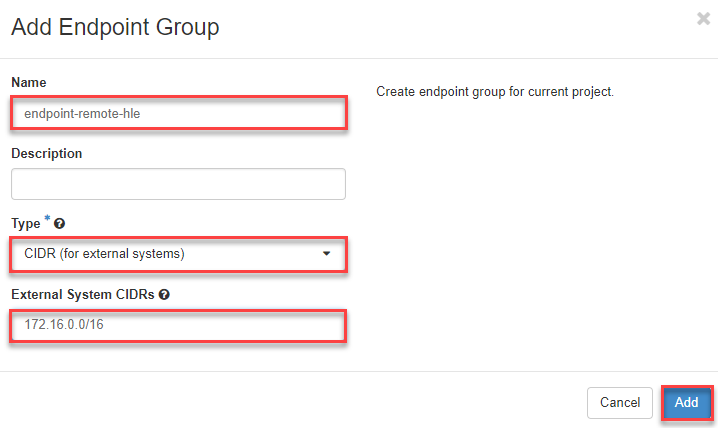
B) Remote Endpoint Group
- Click +Add Endpoint Group.
- Enter a name, select CIDR (for external Systems) as the type, and enter the peer network.
- Click Add.
5. Add IPsec Site-to-Site Connection
- Switch to the IPsec Site-to-Site Connections tab.
- Click +Add IPsec Site-to-Site Connection.
- Select the previously configured parameters from the dropdown menus.
- Click Add.
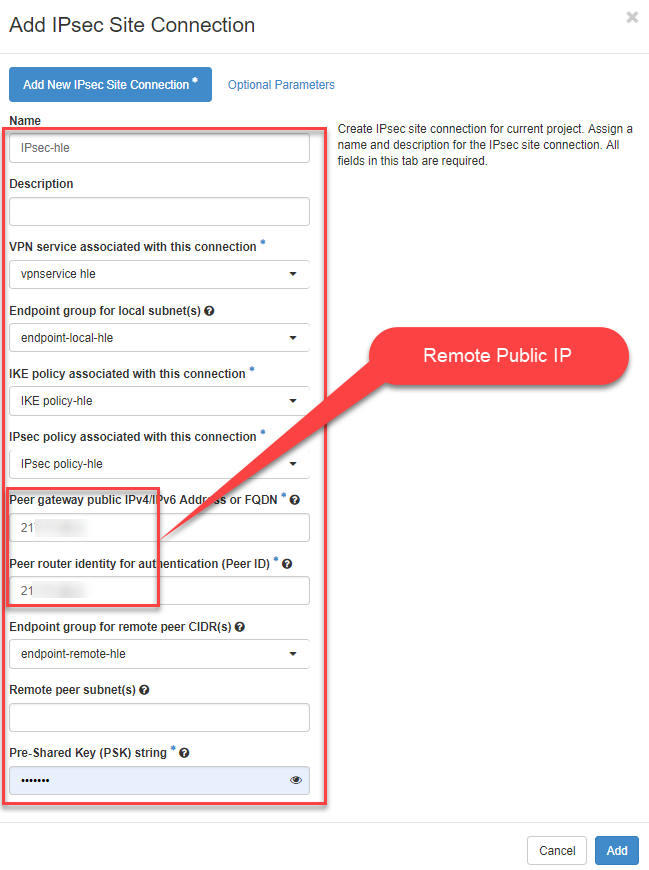
If everything is configured correctly, the IPSEC VPN connection is listed with status Active (the IPSEC tunnel comes up).

Important
If the settings are incorrect, the status remains Pending until the negotiation (Phase 1 and 2) matches the remote side. In this case, delete the Site Connection and recreate it with the correct parameters.