Port Forwarding
Port forwarding redirects incoming traffic from a Floating IP port to a specific port on a VM. This is useful when you want to expose specific services without assigning a dedicated Floating IP to each VM.
Prerequisites
- A router connected to a private network (see Setup Network).
- A free Floating IP address.
Forward a Single Port (Horizon)
Scenario: Forward external port 2222 to a VM on port 22 (SSH).
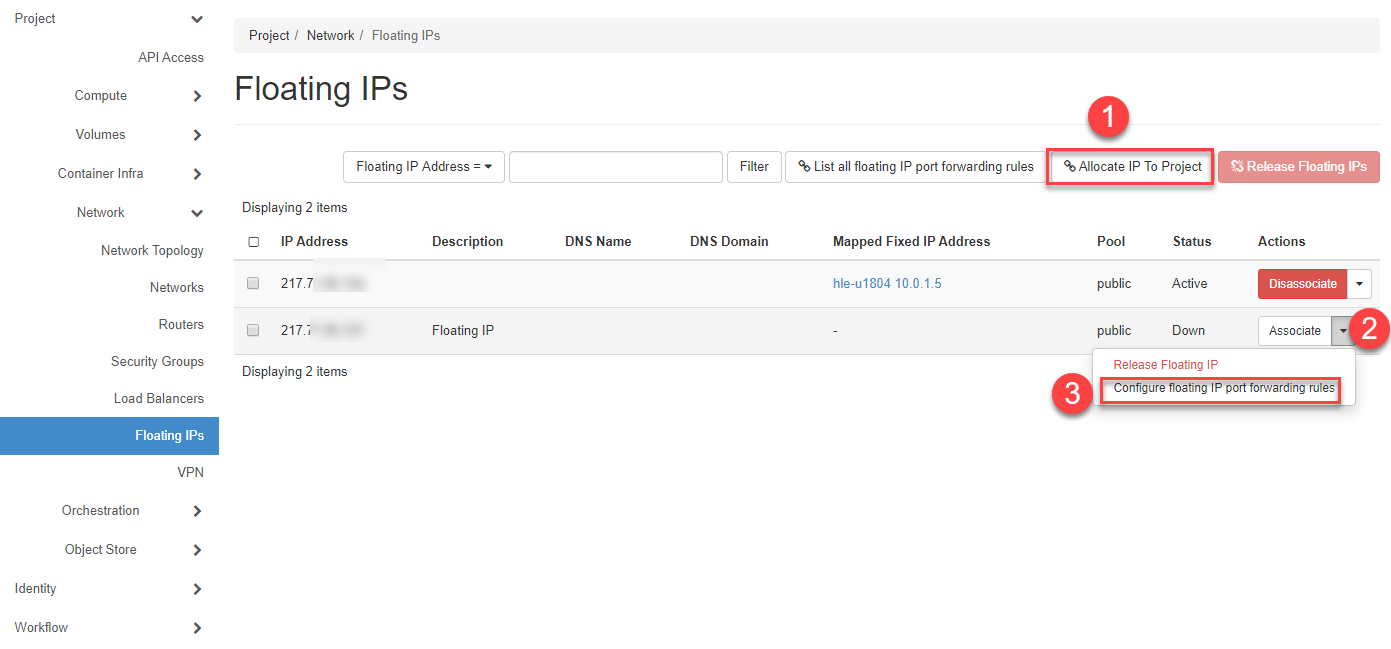
- Navigate to Network > Floating IPs.
- If you don't have a free Floating IP, click Allocate IP To Project.
- Click the dropdown (2) and select Configure floating IP port forwarding rules.
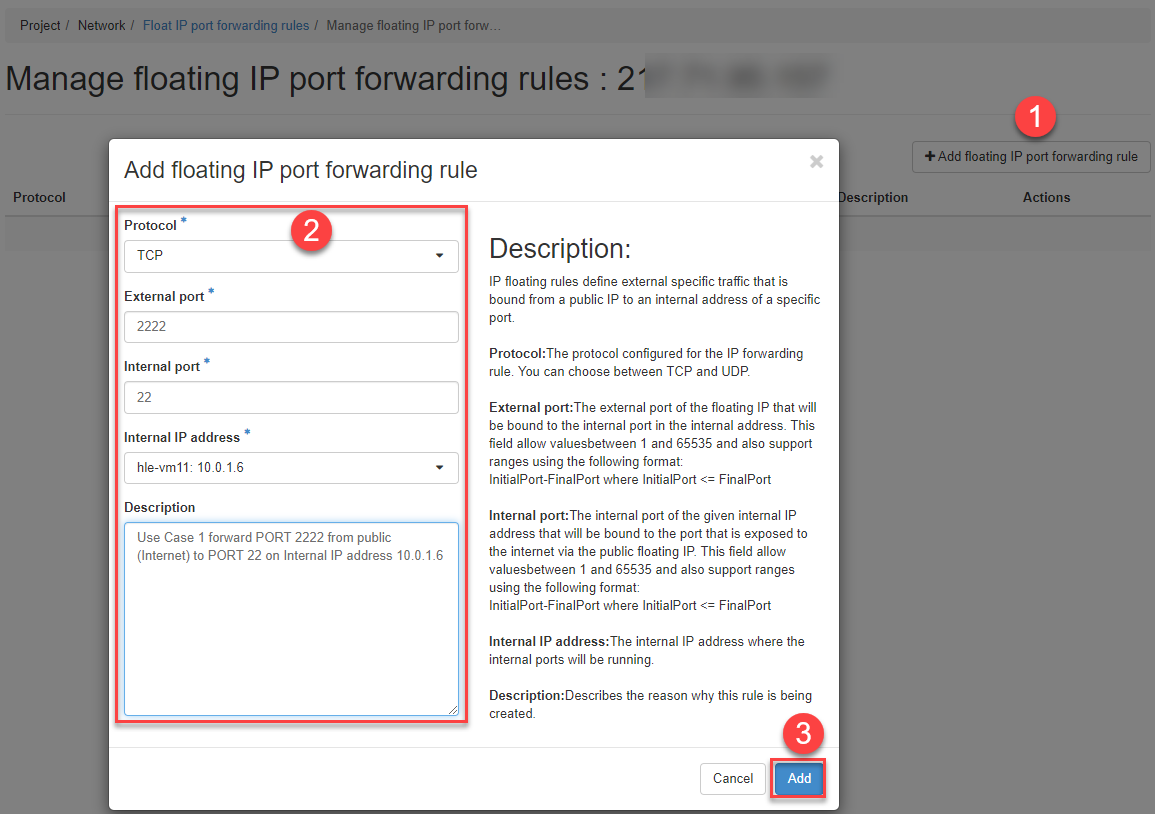
- Click +Add floating IP port forwarding rule.
- Enter the desired information and click Add.
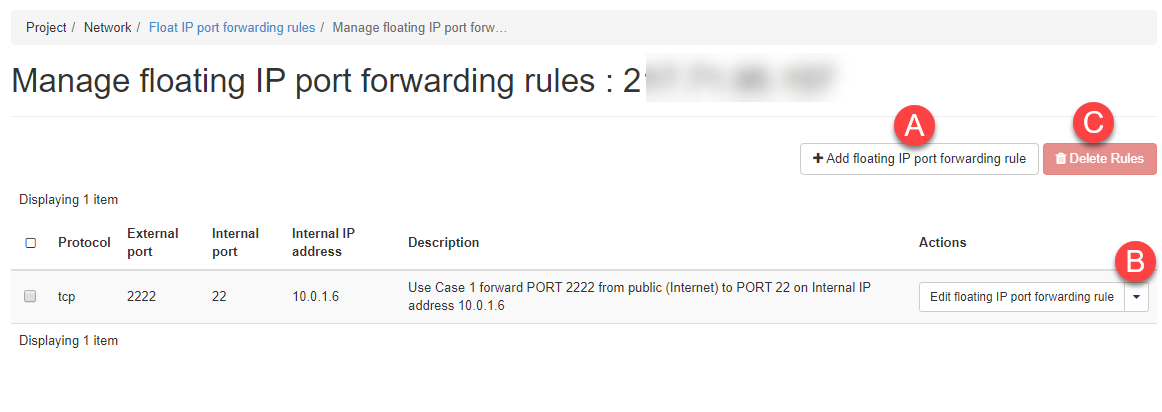
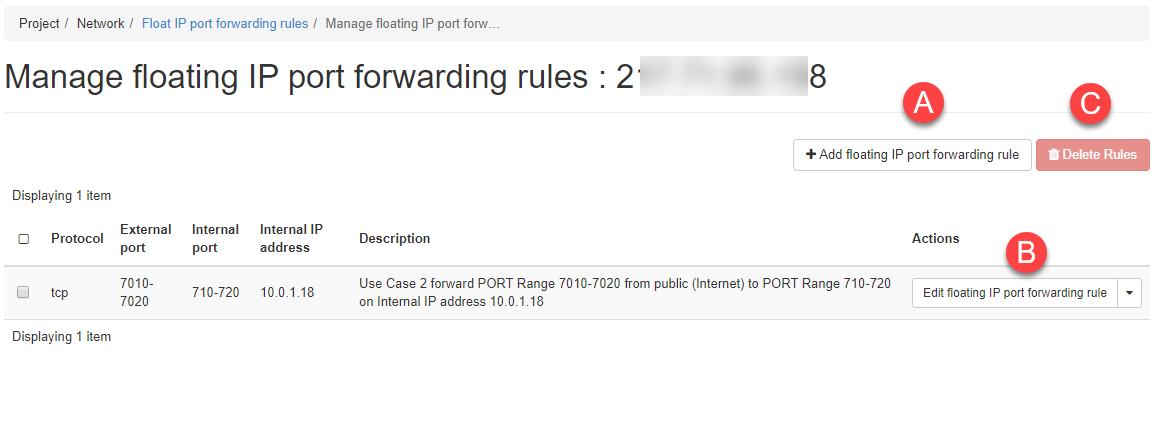
The rule is created and listed.
Note
You can create additional rules, edit them with button (A), or delete them (C). The forwarded ports (Ingress) must also be open in the applied Security Group.
Forward a Port Range (Horizon)
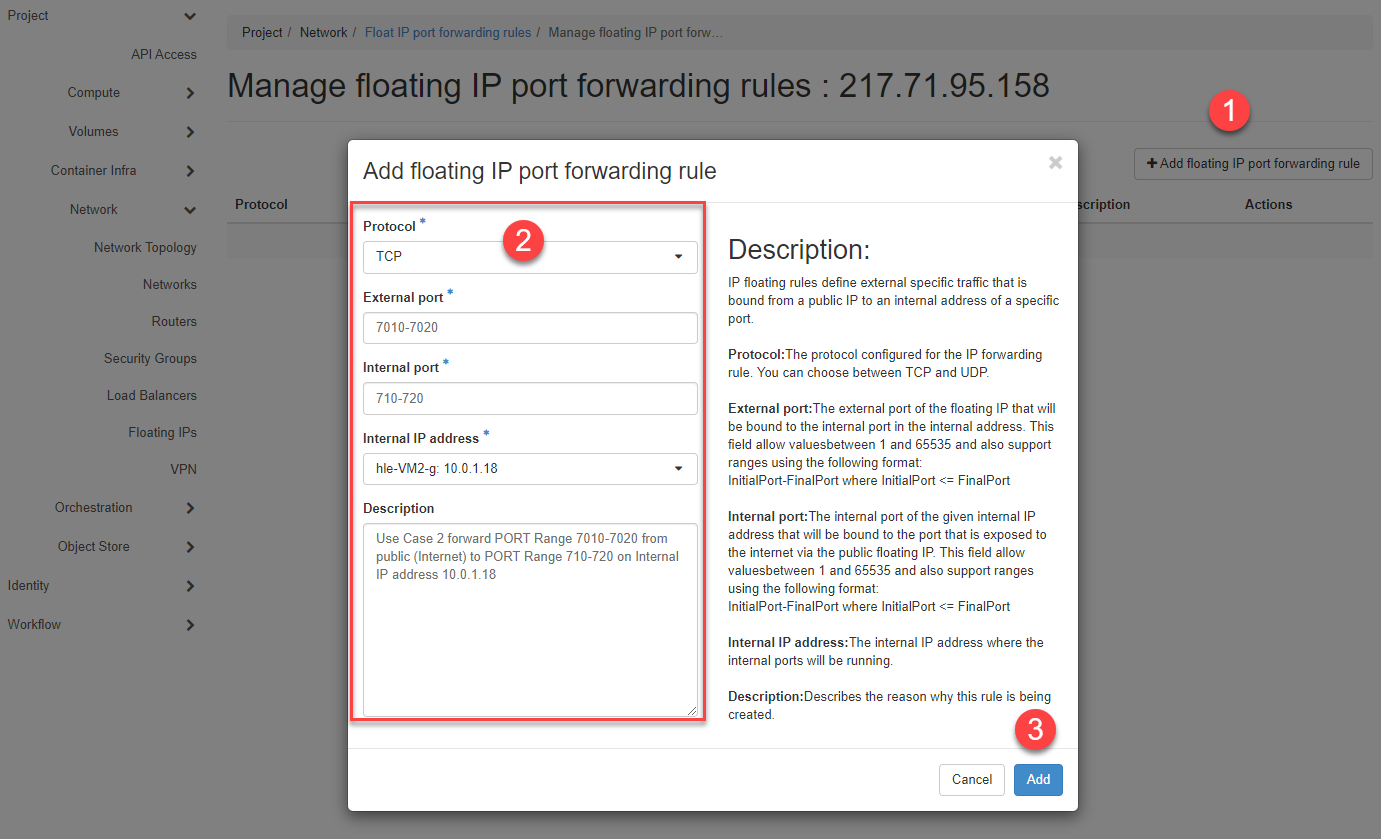
Scenario: Forward external port range 7010–7020 to a VM on port range 710–720.
Note
The external and internal port ranges must be the same size.
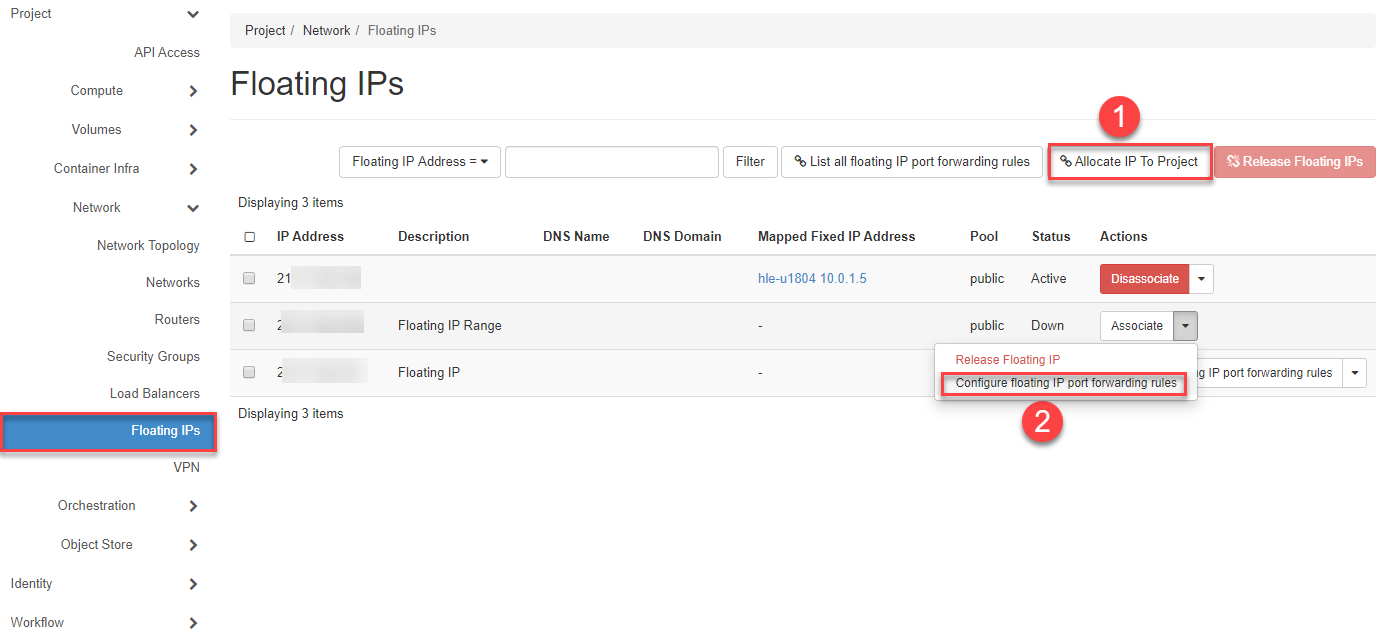
- Navigate to Network > Floating IPs.
- Click the dropdown (2) and select Configure floating IP port forwarding rules.
- Click +Add floating IP port forwarding rule.
- Enter the port range information and click Add.
List All Port Forwarding Rules (Horizon)
- Navigate to Network > Floating IPs.
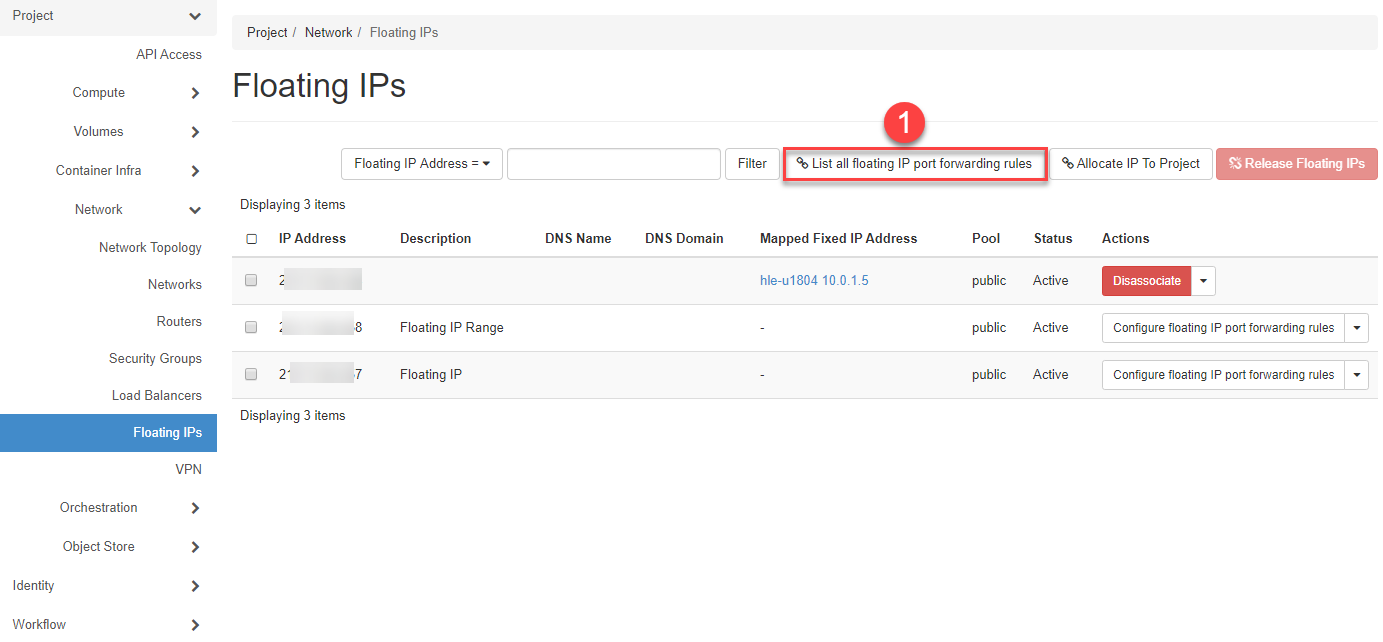
- Click List all floating IP port forwarding rules (1).
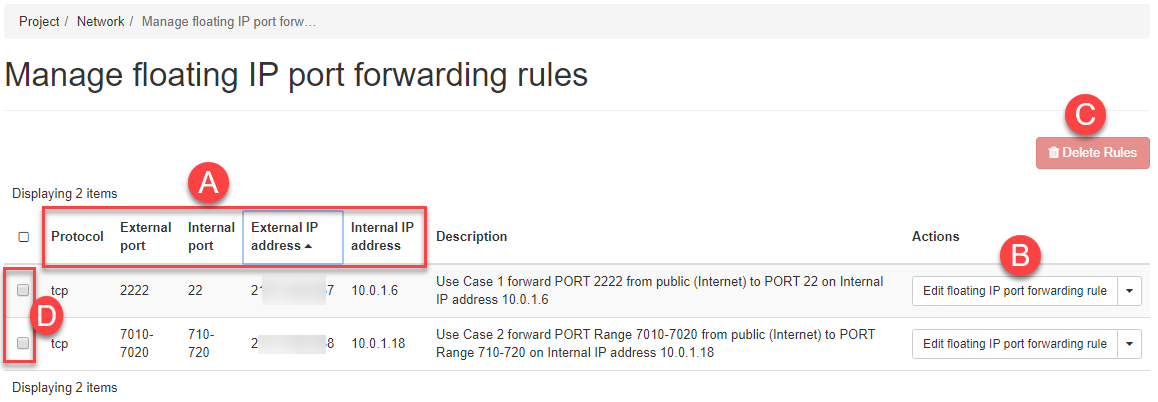
You can sort by columns (A), edit rules (B), or delete them (C).
Create a Port Forwarding Rule (CLI)
# Forward external port 222 to internal port 22 (SSH)
openstack floating ip port forwarding create \
    --internal-ip-address 10.0.1.12 \
    --port 9e583adb-618f-42ba-96ee-1a7b89a377b3 \
    --internal-protocol-port 22 \
    --external-protocol-port 222 \
    --protocol tcp 217.71.95.21
Tip
Use openstack floating ip port forwarding create --help for full parameter reference.