AI Management
The AI menu in the Cloud Services Portal lets you use our LLMaaS Gateway (Large Language Models as a Service) without having to manage your own infrastructure. From this panel you create self-contained AI Projects, generate API Keys for your agents and applications, and control which providers, models, budgets, and limits apply to each key.
This keeps AI usage independent from your OpenStack projects — you do not need an OpenStack project, flavor, or quota to start sending prompts to the gateway. Keys are OpenAI-compatible and work with any SDK or agent that speaks the OpenAI REST interface.
LLMaaS vs. AI Management
This section documents the portal feature — creating projects and keys in the Cloud Services Portal.
For the platform itself (available models, endpoints, streaming, tool calling), see AI Platform. For the full REST specification, see API Reference.
Elements Overview
Working with the AI panel revolves around a small set of concepts. Understanding how Client Admin, AI Project, invited Portal Users, and API Keys interact is the key to using the service efficiently.
At a minimum, to call the LLMaaS Gateway you need:
- A Client Admin who creates the AI Project and invites users into it.
- An AI Project as the organisational and budgetary container.
- A Portal User who has been invited to the project.
- An API Key (secret
sk-bf-…) created by that user inside the project.
The diagram below shows how the elements relate to each other.

| Element | Name | Description |
|---|---|---|
| (A) | Client Admin | A portal user with the Admin role. Only Admins can create AI Projects and invite other users into them. |
| (B) | AI Project | Isolates the project's resources — providers, models, budget, and limits — and is independent of OpenStack. Created by the Admin. |
| (C) | Portal User | An existing Cloud Services Portal user that the Admin has invited to the project. A user can be a member of multiple projects. |
| (D) | API Key | A named credential (sk-bf-…) for calling the gateway. Exists in four API Key Types — Personal, Project User-bound (private), Project-shared, and Client — which differ in what they are bound to and who can see them. See API Key Types. |
| (E) | Providers / LLMs | Optional restriction at project level. If left empty, all providers and models are available to the project's keys. |
| (F) | Budget & Limits | Optional consumption caps defined on the project and inherited by its keys. Empty means unlimited. |
In short:
- A Client Admin (A) creates one or more AI Projects (B).
- The Admin invites existing Portal Users (C) into each project.
- Each AI Project (B) isolates its own Providers/LLMs (E) and Budget & Limits (F).
- An invited Portal User (C) creates one or more API Keys (D) inside a project; the keys inherit the project's restrictions.
- Agents use an API Key (D) to call the LLMaaS Gateway directly — no OpenStack project required.
Dashboard Overview
The AI area is reached via the AI entry in the feature listing on the left of the Cloud Services Portal. It is split into two sections: AI Projects Management and Key Management.
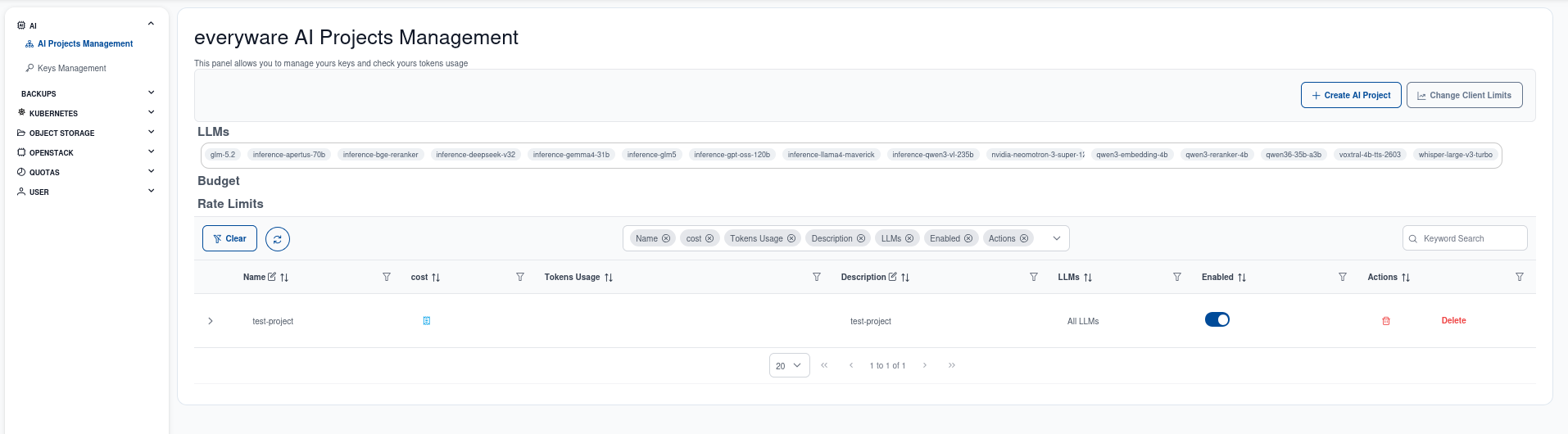
AI Projects Management
This section shows your API Keys grouped by AI Project. Select a project to work with its keys and users.
| Element | Description |
|---|---|
| Project list | Select an AI Project to view its keys and users. |
| Keys | The API Keys belonging to the selected project. Create, view, revoke, and disable keys here. Visibility depends on the key type. See Key Visibility. |
| Users | The Portal Users invited to the selected project. Admins can invite and remove users here. |
| Create AI Project | Opens the project creation wizard with the Budget and Limits fields. See Create an AI Project. |
| Change Client Limits | Admins set client-wide limits that apply to the whole client, not to individual projects. |
Key Management
This section shows all API Keys of the client in a flat, filterable list (filter by user and/or AI Project). This is also where you create new keys.
| Element | Description |
|---|---|
| Key list | All keys of the client, filterable by user and AI Project. Admins can list, remove, and disable keys here. See Manage Keys (Admin). |
| Create Project | Opens a basic project creation wizard without the Budget and Limits fields. |
| Change Client Limit | Same client-wide limits function as in AI Projects Management. |
| Create Key | Opens the key creation dialog. The key type is chosen via the Project field and the User-bound checkbox. See Create an API Key. |
Where consumption is shown
Budget, limits, and usage for AI Projects are only visible inside the AI panel — they do not appear in the general Usage Dashboard or Quota panel. OpenStack usage and AI usage are tracked separately.
Prerequisites
Creating an AI Project requires the Admin role in the Cloud Services Portal. Regular portal users cannot create projects — an Admin must create the project and invite them first.
To use the AI panel you need:
- A valid account in the Cloud Services Portal.
- To create a project: the Admin role, plus permission to access the AI menu.
- To create keys: to have been invited to at least one AI Project by an Admin.
- (Optional) A local agent, script, or SDK that speaks the OpenAI-compatible REST interface, if you want to try a key right away.
Next Steps
- Create an AI Project — admins set up providers, models, budget, limits, and invite users.
- Generate an API Key — invited users create a key and use it in their agent.
- AI Platform — models, endpoints, and use cases.
- API Reference — full REST specification.